Ran into a situation where I required to convert all the images used in my paper to .eps format. I was dreading having to do this manually using Gimp, when I realized that I could easily script Imagemagick to do this for me. I came up with the following piece of code that does the conversion for me. It is very quick and dirty, but it works – all figures in formats jpg, jp2, png, pdf in the directory in which the script is run get converted to Eps. Of course, you might be interested in some other format – feel free to take the code and modify accordingly.
Script to convert from various image formats to eps
#!/usr/bin/env python
# Author: Arvind Pereira
# Date  : Oct 24, 2013
import os, re, sys

dirList = os.listdir( '.' )
try:
    os.mkdir( 'EpsFigs' )
except:
    pass

for f in dirList:
    m = re.match('([\w\-]+).(|jpg|jp2|png|pdf|)$',f)
    if m:
        cmd = 'convert %s EpsFigs/%s.eps'%( f, m.group(1) )
        os.system( cmd )
The Glider path planning library is a collection of planning software developed for deterministic and probabilistic path planning for underwater gliders. It is best suited for path planning where there is uncertainty in predictive ocean models. I have written this code for risk-aware path planning for underwater gliders. One can easily extend this to perform path planning under a different set of domains.
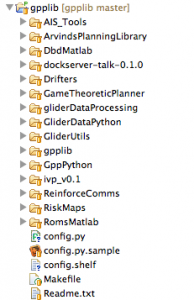
Currently the directory structure for GppLib looks as follows:
Directory structure of the Glider Path Planning Library
1. AIS_Tools : This is a set of tools which allow for Python-based Live-AIS data collection. This depends upon libais. (Python)
2. ArvindsPlanningLibrary: This is a work-in-progress and will contain fast graph-based heuristic search algorithms. (C++)
3. DbdMatlab: Contains code for working with Glider DBD data files using Matlab. (Matlab)
4. dockserver-talk-0.1.0: This isn’t part of GppLib itself and will not be present in your release version. It is an useful software to script out programmatic interactions between code in Python and the Dockserver. To get Dockserver-Talk click here – Link. (Python)
5. Drifters: Code Stephanie was starting to develop which used gpplib to advect drifters around. (Python)
6. GameTheoreticPlanner: Code Valerio Ortenzi wrote as part of a Game-theoretic extension to GppLib. (Python)
7. gliderDataProcessing: My fork of TWR’s glider data processing code which compiles on *nix machines. It works both on the Mac and Linux as well as platforms like the Gumstix. (C/C++)
8. GliderDataPython: This contains utilities that create new mission files, analyzes Glider data files (from Ascii format) and so on. These utilities are useful to process glider data from missions conducted such that we can understand what the glider was doing while running planning experiments and so on. (Python)
9. GliderUtils: A directory which contains some general-purpose utilities for debugging problems with gliders. This isn’t strictly part of path-planning and is not in the gpplib distribution.
10. gpplib: This contains the core files for the path planning library. The planners implemented in this are: 1. Shortest Path, 2. Minimum Risk , 3. Minimum-Expected-Risk, 4. State-MDP, 5. State-Action-MDP, 6. Stationary GP-MDP and finally 7. Non-stationary GP-MDP. There are also tons of utilities for simulating glider motion, performing interpolation of ROMS data and so on. Will discuss this in more detail later. (Python and C++)
11. GppPython: This contains most of the path-planning specific code which can create transition models for MDP planners, run instances of the planner and so on. (Python)
12. ivp_v0.1: This is Geoff Hollinger’s code which can analyze the variances in ROMS data using Interpolation Variance GPs. These variance estimates are used by our code in the NS_MDP_GP planner to produce transition models, which form the core of the MDPs. (Matlab and C++)
13. ReinforceComms: Code to perform Reinforcement learning modifications to the communication protocol used on the gliders. This will be moved out of gpplib since it doesn’t belong here.
13. RiskMaps: A few of the risk maps that I have used in my work for path planning. These are essentially cost-maps.
14. RomsMatlab: Code for pulling Roms data from JPL’s Ourocean server as well as to store it in Matlab’s .mat format for cross-platform use.
Resume Creation with Latex
This post contains useful tips on how one might create their resume (from scratch) using (and is based upon lessons I learnt while creating mine). In the past I had been using MS Word to create my resumes – worked fine to some extent, but formatting in Word and getting it perfectly right requires a lot of skill. Don’t get me wrong – its easy to throw together something that’s good, but making it perfect is much harder than I had ever expected.
As usual, this post is motivated to make life easier for the next person going down the same path – lessons I learnt should help cut down the time required for others quite a bit.
The first thing one needs to be able to use Latex is to download and install it of course. Latex runs on all platforms and is one of the best ways of creating documents, although typesetting in Latex is almost like writing code. Some of us like that as opposed to the frustrating time we have with Word or Pages. Anyway, you can get Latex from links here. The next step is to get a good template for a resume – this typically requires a class file. I found a nice one for resumes here. I encourage you to look at the various options available. The class file res.cls can be downloaded from the same page. Download this file as well as the latex tex file that works best for you.
Then in your editor, modify the contents of the latex template so you customize it to your own preferences. Pretty soon you should have a resume which looks quite similar to that from the template you chose.
Modifications to get conditional formatting and custom tabular bulleted items to work
I made quite a few changes to the original template to create my resume. In the rest of this post I will explain what I did to go from the simple resume to my latest resume which is here.
I tried a few things to get my bulleted lists to work well, but resorted to a regular table in the end and used \textbullet to get my bullet points. The normal way to get a list would be to use itemize or the slightly more powerful easylist.
Now, I was interested in being able to use the same basic Tex file to also create a shorter resume. How might I go about doing something like that? Well, one way is to make use of conditional statements to include code for a detailed version, and to leave them out for the shorter version. This is precisely what I’ve done to create the short resume here. Below, is a small code snippet of a section of the resume, where the shorter version will not contain the bulleted points with black squares as their bullets.
Usage of the Boolean flag for conditional inclusion of information
{\sl \href{http://nio.org}{\textbf{National Institute of Oceanography, Goa, India}}}       \hfill               August 2002 - August 2003 \\[2pt]
\textbf{Marine Instrumentation \& Computer Division} \hfill \textbf{Project Assistant}
  \begin{itemize}
  \item  Worked on the design of a heading controller for ROSS - "Remotely Operated Sea Skimmer", a surface craft which was remotely controlled
    \iftoggle{detailedVersion}{\begin{itemize}
  \item[$\checkmark$] Tested robot successfully at sea (even soldered broken circuitry at sea)
  \begin{itemize}
   \item[\tiny$\blacksquare$]  Code written in C/C++ (Linux), Visual C++ for Windows-based GUI
   \item[\tiny$\blacksquare$]  Hardware design involved PCB layout software (Eagle)
   \end{itemize}
 \end{itemize}}{}
To choose between compiling a longer or shorter resume all I need to do is switch toggle the flag true or false:
Comment/Uncomment accordingly to produce a detailed version
\newtoggle{detailedVersion}
% If we want a detailed resume with individual languages used in each project and so on, toggle this flag true.
%\toggletrue{detailedVersion}
\togglefalse{detailedVersion}
That is all that was required for me to generate two versions from the same Tex file.
Getting Hyperlinks and Publications into the resume
The next interesting modification is creation of hyperlinks. I like having an interactive resume, and even with all the detail in my detailed resume, pictures speak more than a thousand words – so I’d prefer referring the reader to a more detailed explanation with pictures or figures on my website via a hyperlink. I’ll just refer you to this website which has more information on embedding hyper references in your resume, if you want to go my route too. Now, one thing I did not like with the default hyperref settings was that my resume suddenly had light blue rectangles around every hyperlink transforming what should have been an elegant article into rubbish. Here are the lines that bring your document back to a respectable looking thing:
Hypersetup to prevent the ugly colored hyperref boxes from showing up
Finally, the last change I had to make to get my resume to work was to add a bibliography with my publications in it. If you are using the res.cls file from RPI’s career development center, you will most likely not be able to get a bibliography to appear in the normal way. The first thing that needs to be done is to modify res.cls so that it allows the .aux file to be created which is required for bibtex references to create a .bbl file. This file is created based on a bibliography style (.bst) file (more on this later). For now, just find the \nofiles command in res.cls (not your own TeX file) and comment it like so:
Some resume's do need .aux files
%\nofiles % resume's don't need .aux files
Now, the next thing that is required is to prevent the bibliography generation process from inserting its own section name and so on. To do this I inserted the following code in the part which makes the bibliography show up:
Here the line with the \renewcommand and the one following it force the section name to be set to empty. Only one of these is usually going to be active for the given article – I’m including both so you’re safe even if you use a different kind of resume class file. The command \bibliography{arvind_pereira} is telling bibtex to use arvind_pereira.bib (with all my publications bibtex entries in it) to create a new file. This reminds me of another script I had to write to format the entries of the bibtex file properly – sometimes capitalizations get lost due to the bibliography style file (especially if you use the \bibliographystyle{plain} format). I have written a quick and dirty Python script that should fix this so the publications look more like you’d probably expect them to. Download it from here (as you can tell by the date, I wrote it for this resume).
Running FixBibtex.py with a source file arvind_pereira.bib
Another useful idea is to be able to split publications into Journals, Conference proceedings and so on. I have not gotten around to that yet – will probably try to figure out a way to use our lab’s new Django REST api to output .bib files corresponding to each of these categories for me.
Anyway, one thing I did want to do though was to have some rudimentary sorting by date going on with my publications so that the latest publications show up first. To do this I created my own .bst file using the interactive bibliography style file creator (which is a nifty command line utility that usually comes with your latex distribution). To do this just type:
Running makebst.tex on the command line for custom sorting
pdflatex makebst.tex
This is pdfTeX, Version 3.1415926-1.40.11 (TeX Live 2010)
 restricted \write18 enabled.
entering extended mode
(/usr/local/texlive/2010/texmf-dist/tex/latex/custom-bib/makebst.tex
LaTeX2e <2009/09/24>
... ( Some stuff skipped ) ...
***********************************
* This is Make Bibliography Style *
***********************************
It makes up a docstrip batch job to produce
a customized .bst file for running with BibTeX
You will need to be patient as you select options from the menus that appear, but somewhere in there you can sort publications by date, author name and so on. It’s quite powerful and you can really change almost everything about the way the references are formatted. As you can tell, I also created an arvind_pereira.bst file which I used to get my reverse chronological ordering on my publications.
Well, those are all the lessons I wanted to share with you. Please feel free to leave any comments and lessons you might have learnt along the way too. Also big thanks to Michael DeCorte who wrote the original res.cls class file I’ve used for my resume.
Adventures with the Autonomous Underwater Gliders at USC
Recently, we got a little bit of attention for our work with Autonomous Underwater Gliders via a couple of articles. Phys.org featured a story about the engineering improvements to the gliders here. The Daily Trojan published a story which featured our bigger glider team at USC. The Viterbi school featured our lab’s work as part of Earth day. This story was written by Conrad who interviewed a bunch of us at the lab. My lab mates and I got featured in a video created by E. Bayne and E. Saavedra.
[Embedded content removed]
Underwater Gliders
Underwater Gliders rely upon GPS for an initial position update (at the surface) and have to guess their position underwater (a process called dead-reckoning). The gliders are designed to consume very little power, and in order to do this, they use buoyancy to move around in the water – they have to move up and down in the water column to make horizontal progress. The advantage to this over using propellers is the gliders can stay out much longer, but they give up speed to do so. This also means that the gliders are at the mercy of strong currents at times and can be swept off leaving us very worried. The gliders communicate back to us via Iridium (a globally available satellite service), VHF Freewave radio (another bi-directional links) and via the ARGOS system (a glider to shore satellite-based messaging service). As with all modes of radio communication we can only communicate with gliders when they come to the surface.
At USC, most glider deployments the field deployments are performed by members of Prof. Gaurav Sukhatme’s RESL, Prof. Burt Jones’ USCLab and (sometimes we’re also joined by members of) Prof. Dave Caron’s Caron Lab. For those interested in some of the back stories (there were several even though it appears there is just one in the video), here are a few:
Glider recovery using the iPhone
In the video, I appear to be using my iPhone quite a bit – that was part of the glider recovery. The night before that I had developed some software which automatically parsed information coming in from a glider at the surface to a format used by a commercially available app called MotionX gps. This allowed me to derive a range, bearing and Expected Time to Arrival (ETA) to reach the last known location of the glider drastically simplifying recoveries over the previous method of manually entering this information into a hand-held or boat-based GPS. We are planning to build our own custom-app which will reduce the lag in these updates even further, but for now I really like the ease of use afforded by our system coupled with MotionX.
The lost glider
In the video there was mention of a glider that got lost at sea. This happened when some of the electronics on the glider failed and we stopped hearing back from it. Normally, the glider surfaces once every 8 hours. This time we did not hear from it for nearly 24 hours – this translates to really tense times of course. Teledyne Webb research has done a good job of building in a lot of fail-safes into their AUVs, one of which is a hardware watchdog that ejects a heavy weight in the tail independently of the main computer being functional. This allows the glider to come to the surface even though it might not be able to dive or communicate again.
That is exactly what happened – the glider began showing up on ARGOS which gives us an independent location estimate (albeit at higher errors 100s of meters as opposed to tens with a GPS). Although this was great news, it was a difficult operation retrieving the vehicle because unlike robots on land, a robot at the surface in the ocean moves along with the surface currents. Time is of the essence in such cases – one has to be able to predict where it will drift to using predictive ocean models. Luckily that is something right up my alley – I use predictive ocean models to plan paths for the glider when it is functioning normally. Here, I used my tools to compute a trajectory that predicted where the glider would drift so I knew where to expect the glider to be approximately at every hour. Armed with this I headed off to USC’s Wrigley Institute of Marine Sciences at Catalina island where Trevor Oudin picked me up. We are very lucky that USC has this institute on the island and for the help of all these amazing people on the island.
We headed for the location corresponding to the time table I had created – the glider appeared to be drifting north west that day caught in strong surface currents. Soon we were out of cell-phone range cutting out any hopes of us receiving new position updates from our team on shore. With each passing minute my hopes of finding our stranded glider kept sinking. I was starting to lose hope when I noticed that a radio I was carrying indicated that it was receiving a signal from the glider (although the glider was not transmitting any data). I knew we were within range, so Trevor slowed down the boat for me and we began doing a special pattern which would allow us to figure out the direction toward the glider. This was important because the glider could be anywhere within a 2 mile radius, and without it being able to transmit a GPS location this was still like finding a needle in a haystack.
After about 15 minutes of hunting around I caught glimpse of something yellow. When you are looking for something its amazing how many false positives you get – Kelp paddies in this region have yellow in them so its not uncommon for us to motor up to them and find nothing. Luckily, this time we did find the glider with quite a lot of Kelp stuck in its tail. I don’t think I’ve ever been as relieved as I was that evening – I slept like a baby on the Catalina Express (on my way back to LA).
When a glider met a boat
My research focusses on trying to prevent the glider from surfacing in regions with high shipping traffic. I use AIS data to build risk maps which are used to plan safe paths for these robots such that they can stay out of harms way. Many smaller boats do not have AIS transponders on them and are free to roam the ocean without having to stick to shipping lanes or well travelled paths. Since the glider does not have cameras or any other form of active perception we have to plan paths on these vehicles based on older information. Still, it is very unlikely that boats will collide with gliders because the ocean is huge. Because these gliders are small, they end up being like a small piece of wood floating at the surface – they won’t damage even a fast boat – they absorb the shock and if the shock is large enough break apart and sink. Luckily for us, in this one case where our glider had an encounter with a boat (the only one in 7 years among two gliders), the glider only lost a wing. It also has minor scars where the propeller cut into it. Other than for that the glider appeared fine – it is still going strong.
As a result of this incident, we became even more careful with our operations of gliders. We always avoid regions which may have high traffic as well as minimize surface time by communicating or transferring data mostly at night. We also avoid regions known to have pleasure craft or dive boats. All these small things help keep our gliders in the ocean longer and help scientists use them to understand the ocean better.
There are lots of other stories which never get into research papers, but they add to the fun (and challenges) of doing research with robots at sea.
Credits:
USCLab:
Prof. Burton Jones, Matthew Ragan, Bridget Seegers, Elizabeth Teel, Xiao Liu and Ivona Cetinic.
RESL: Prof. Gaurav Sukhatme, Prof. Ryan Smith, Geoffery Hollinger, Carl Oberg, Hordur Heidarsson, Supreeth Subbaraya, Stephanie Kemna, Christian Potthast, Jonathan Binney and Jnaneshwar Das (well the whole lab I guess).
USC Wrigley Institute for Environmental Studies:
Trevor Oudin, Gerry Smith, Lauren Czarnecki, Gordon Boivin, Josh Jensen, Sean Conner, Maureen Oudin, Katie Chvostal, and everyone else at WIES who help us make all this happen! One of the biggest enablers of our ability to do research with gliders is this institute and all the great people there who are so helpful to us.
Teledyne Webb Research:
Clayton Jones (the most knowledgeable person on Slocum gliders), and the amazing glider support team (specially Ben Allsup, Pete Collins, David Pingal and Ben Shaw).
Also thanks to Capt. Ray Arntz and his team who on numerous occasions took us out on emergency glider recoveries when speed was of the essence!
Breakfast at Fisherman’s Cove
I was at St. Catalina island a couple of days back to test some new electronics Supreeth and I developed for our USC gliders. The first day of testing was really good – our new hardware and the software that goes with it worked quite well. Unfortunately the sea was too choppy for us to deploy the glider so we decided to wait a day to do so.
As we walked down to the dock to do the test the next morning, we found that the cove had more action than ever… Turns out a large school of Sardines had inadvertently made its way into the cove and got itself trapped between birds (that wanted to prey upon them) and the rocks leading to the dock. Needless to say, the poor fish were decimated in less than 15 minutes…
Heres a video of some of that action…
iOS 6.1.3 upgrade: Activesync issue causes major battery drain problems
I installed iOS 6.1.3 a couple of days back and my iPhone began heating up like crazy and started running out of charge in under 4 hours. I should have read this article, which may have saved me some of this trouble. Realizing something was wrong I tried Apple care as well as the Genius bar, both to no avail. Both had very helpful people, but the diagnosis was incomplete and didn’t solve my problem. This is a description of the problem and a temporary fix until Apple releases a real fix in an iOS 6.1.x release.
The symptoms:
1. Phone was heating up like crazy!
2. Battery lasted for < 4 hours without any apps open.
3. Standby time and Usage time were pretty much almost equal (~4 hours).
Anyway, I did a little bit of poking around on the phone and found that the cause of all the problems (atleast for my phone) was that the “dataaccessd” daemon was crashing over and over again. This is the daemon that manages keeping data in sync between the phone and web-servers such as iCloud or Google’s exchange servers. I’m guessing Apple may have modified how this data exchange is done to improve the sync with iCloud, but this may have resulted in it crashing on my phone when talking to other exchange servers that use Activesync.
Now, this made more sense – if the dataaccessd daemon keeps trying to access the internet to get to the exchange servers and crashing, and then re-spawning over and over again, the phone will have high CPU usage and possibly high RF-usage (depending on how far into the sync it got). I tried disabling all syncs first and found that this appeared to help the phone run a little cooler. I re-enabled iCloud and it seemed like this didn’t make the phone heat up again. Turning on my Gmail calendar exchange got the phone heating up again – so I decided that this Gmail calendar sync was the most likely suspect.
Right now as I write this the phone battery is still at 77% charge after 17 hours – Usage 2 hours, 15 mins; Standby 17 hours, 11 mins. Which means – this solves the power usage issue (atleast for me).
I’m guessing most people complaining about their iPhones/iPads running out of charge after an iOS 6.1 upgrade are probably having the same or a similar issue.
The temporary fix:
1. Go to “Settings” -> “Mail, Contacts, Calendars”.
2. Under “Accounts” turn off “Calendars” for everything other than iCloud. Do this especially for Gmail accounts. Note – the problem seems to be related only to Calendars, so don’t worry about syncing email and so on – that seems to be working well.
This should fix power consumption issues.
Unfortunately this doesn’t solve the root cause of the problem which appears to lie in iOS 6.1.3. Apple needs/will most likely release a fix for this soon – I do rely a lot on my Gmail calendars and this is inconvenient. That being said though everyone makes mistakes – there are times when even Apple is going to slip up. I just hope they fix this issue soon and are more careful with testing iOS updates, before releasing them in a hurry.
Update:
I don’t know if this is necessarily an issue on Apple’s end or if it is due to changes on the server side by Google (for eg.), because there are many people who are having similar issues with older versions of iOS 6.1. In terms of battery usage, this was certainly the problem for me. My phone is still doing great at: 28 hours standby, usage: 3 hours, 36 minutes and the phone still has 37% charge. Hopefully the party which has changed something with the sync mechanism will fix it soon and we can all get more mileage from our phone battery while still being productive.
A Unit testing tutorial for C++ using CppUnit
Unit testing is a method of writing test code for components of software to ensure they function correctly. Typically in test-driven development, one writes tests for the task to be implemented first; then one writes code which makes these tests (which fail initially) pass, by implementing the algorithm(s) which accomplish the desired task(s). When implemented correctly, all the unit test should pass. If we write unit tests carefully, they act as certificates of the correctness of our implementation (at least for the inputs we have tested for). Should someone or something break these tests in the future, we can identify the source of these problems more easily – making it easier to debug issues in larger software projects.
Unit testing is very popular and supported at the language level (through standard libraries) in several languages such as Java, Python, C# and so on. C++ does not have language level support for Unit testing but there are several free Unit testing frameworks one can choose from including CppUnit, GoogleTest, Boost Test framework as well as many others. Please download the latest version of CppUnit from here, and install it on your computer in order to follow along with this tutorial.
Writing Unit tests for a 2d Linear Equation Solver
Here we will look at how to use CppUnit to create a very simple test suite for the high-school problem of solving a system of 2 linear equations using Cramer’s rule.
First, let us try to understand the three solution cases for different types of inputs to the problem of solving a system of 2 linear equations:
Case 1: A unique solution exists. Consider and . We know (from elementary math) that the solution to this will be: and . Here we can think about creating a test where we will want to ensure that if we wrote a function to solve a system of these two concrete equations we will get the same result for x and y. Similarly if we solved and we would get and .
Case 2: No solution exists. Similarly, we might want to test for cases where the solution is indeterminate, or incompatible. Take for example the system of equations and . This describes two lines which are parallel to each other and therefore have no common values of x and y which will simultaneously satisfy both equations. We want our test to be able to ensure that we detect this case.
Case 3: Infinitely many solutions exist. We will ignore this third possibility wherein we could have two equations which are basically the same as each other such as : and . Every point on one line satisfies the second line, and this solution would be expressed as .
Since we have two variables for the result, we will return the solution using a struct which will also have a flag for whether the solution exists or not.
Struct for the solution of the system of linear equations.
Note: I’m doing a bit-wise comparison of two structures for equality even though the fields are floating points. This will work for the test-cases I’m using here, but when one does a comparison of floating point numbers we might want to do something like this instead:
Minor modification for floating point equality with a tolerance
Let us assume that we will provide our equations to our solver class in the following format: and ,which in matrix form will be:
.
Now, we can write a test as follows:
ValidTest1
void uniqueSolutionTest1() {
		// We can solve this easily by hand.
		double a = 2, b = 8, e = 16, c = 4, d = -8, f = 2; // 2x + 8y = 16; 4x -8y = 2
		Lin2dSolution expSol; expSol.x = 3; expSol.y = 1.25; expSol.isValid = true;
		Lin2dSolution l2dsol = Lin2dSolver::Solve(a,b,e,c, d, f);
		cout<<endl<<"Solution is: x="<<l2dsol.x<<", y="<<l2dsol.y<<endl;
		CPPUNIT_ASSERT( l2dsol==expSol );
}
Notice that here we’re assuming that we have a class called Lin2dSolver, which has a method called “Solve” which can solve for x, and y by returning a struct of the type we defined earlier. We want to write code which will make this test pass. The test is the part checked by CPPUNIT_ASSERT( l2dsol == expSol ), which is essentially trying to ensure that the solution returned by our function call is the same as our expected solution.
But first, we need to write a stub for the solver:
Lin2dSolver class without any body in the Solve function.
typedef const double CDBL;
class Lin2dSolver
{
public:
	Lin2dSolver() {}
        Lin2dSolution  Solve( CDBL a, CDBL b, CDBL e, CDBL c, CDBL d, CDBL f ) {
		Lin2dSolution l2dsol;
                return l2dsol;
       }
       virtual ~Lin2dSolver() {}
};
I’m including a tiny project which you can download here to follow along (which should allow you to build this project from scratch). It includes 3 source files – Lin2dSolver.h which contains the class we want to test, TestLin2dSolver.h which has our test cases for the Lin2dSolver class, as well as a generic TestRunner.cpp class which creates a suite of tests and runs each of them. I know this is more than you’d need for a very lean unit-testing setup, but think about it this way – you might want to create many modules which need testing. For each of these, create a test class like TestLin2dSolver and all you have to do to test it is to add this test suite in the set of tests that TestRunner.cpp will run. This should allow you to setup your own testing framework with very few modifications.
TestLin2dSolver.h (or our class with the test case suite) contains the following code:
Notice, that we’ve created a Test suite in this case – this allows us to have many tests which can be automatically run as part of an automated continuous integration system.
The way in which we make our tests run, is to create an executable which can run our tests for us. This is done using the TestRunner.cpp file listed below:
TestRunner.cpp
#include <iostream>
#include <cppunit/TestSuite.h>
#include <cppunit/ui/text/TestRunner.h>

#include "TestLin2dSolver.h"

using namespace std;

int main() {
	CppUnit::TextUi::TestRunner runner;

	cout << "Creating Test Suites:" << endl;
	runner.addTest(TestLin2dSolver::suite());
	cout<< "Running the unit tests."<<endl;
	runner.run();

	return 0;
}
Why have a separate executable to run the tests? Well imagine if we’re developing a large system with lots of sub-systems of which our linear-equation solver is just a tiny part. We can create test suites (each containing many test cases) for each of these sub-classes and we can then add them to the tests our “TestRunner” will execute. This will indicate whether we ran our tests successfully or not.
If you download, untar and make the code provided (as shown below):
How to run the Unit test suite
goanbookpro:Downloads arvind$ mkdir test
goanbookpro:Downloads arvind$ mv RunTestsBasicSetup.tar.gz test
goanbookpro:Downloads arvind$ cd test
goanbookpro:test arvind$ tar -xzvf RunTestsBasicSetup.tar.gz
x TestRunner.cpp
x Lin2dSolver.h
x TestLin2dSolver.h
x Makefile
goanbookpro:test arvind$ make
g++ -Wall -c -I ./ -I/usr/local/include TestRunner.cpp -o TestRunner.o
g++ -o RunTests TestRunner.o -Wall -g -L/usr/lib/ -lm -ldl -lcppunit
goanbookpro:test arvind$ ./RunTests
Creating Test Suites:
Running the unit tests.
.
Solution is: x=0, y=0
F.
Solution is: x=0, y=0
!!!FAILURES!!!
Test Results:
Run:  2   Failures: 1   Errors: 0
1) test: Test1 - Unique Solution. (F) line: 53 TestLin2dSolver.h
assertion failed
- Expression: l2dsol==expSol
Notice that we got only one failure instead of two. This is because the second test case has a minor flaw in it – the structure is initialized to indicate that the solution is invalid in the beginning. Lets make changes to the Solve method now such that we actually solve the system of linear equations. Insert the following lines in the Solve method:
Write the code to solve the system of linear equations.
For your convenience, the project with code such that the tests pass can be downloaded here. As long as the determinant a*d-b*c is not zero, this will give us the right solution to x and y using Cramer’s rule and also indicate that the solution is valid.
Now, if you download the code from the link above you’ll be able to run the tests if you do the following in a shell:
Running tests that pass
goanbookpro:Downloads arvind$ mkdir TestRunner
goanbookpro:Downloads arvind$ mv RunTests.tar.gz TestRunner
goanbookpro:Downloads arvind$ cd TestRunner
goanbookpro:TestRunner arvind$ ls
RunTests.tar.gz
goanbookpro:TestRunner arvind$ tar -xzvf RunTests.tar.gz
x TestRunner.cpp
x Lin2dSolver.h
x TestLin2dSolver.h
x Makefile
goanbookpro:TestRunner arvind$ make
g++ -Wall -c -I ./ -I/usr/local/include TestRunner.cpp -o TestRunner.o
g++ -o RunTests TestRunner.o -Wall -g -L/usr/lib/ -lm -ldl -lcppunit
goanbookpro:TestRunner arvind$ ./RunTests
Creating Test Suites:
Running the unit tests.
.
Solution is: x=3, y=1.25
.
Solution is: x=0, y=0
OK (2 tests)
Well, that brings us to the end of our Unit testing tutorial. Hope you enjoyed building our simple test example. I also hope that now that we’ve got a simple test stub for unit-tests written, you can continue writing new unit tests for each of your classes.
Hint: Sometimes it is easier to create test-cases using languages such as Matlab or Mathematica or even Wolfram Alpha (as I did here) to create test cases more easily. Don’t spend too much time thinking about all the test cases right away – try to be adaptive and flexible. You can always add the more esoteric tests later.
Feel free to use the code snippets – no warranty or guarantees are implied. Also, please report any bugs in comments below.
Buying Drugs for Science: Addressing the Economics of Cybercrime – Stefan Savage @Yahoo Research
Most of us want our research to have a real impact in the world. Very few of us really succeed in that endeavor. The following talk by Prof. Stefan Savage from UCSD is one of the best research talks I have ever heard. I wish his slides were shown too – but the talk is very understandable even without them.
Did you know that 99% of the products advertised using online (pharmaceutical) spam would actually get delivered to your home if you went ahead and bought it? Have an hour to spare trying to understand the economics of the fascinating world of online spam?
Definitely worth watching:
[Embedded content removed]
Using ImageMagick/FFmpeg to create movies from images
ImageMagick is an image manipulation software suite that has grown into a very capable multi-platform utility with support for almost every image format and lots of interfaces to programming languages you may use. ImageMagick can be used to create movies (although I’m not happy with the clarity of those I’ve been able to create with it).
Assuming you have a set of images in a folder “pngs”. To convert these into a mp4 using ImageMagick we could do:
Create mp4 movie with frame delay 1/2 sec using png files in folder png
A better option is to use ffmpeg which is “a complete, cross-platform solution to record, convert and stream audio and video.”
The way to create a movie using ffmpeg is to first create each of these files with names like 0001.jpg, 0002.jpg,… etc (ensuring that none of the intermediate files are missing).
Creating a movie at 1800 bps and a frame-rate of 10 fps
ffmpeg -r 10 -b 1800 -i %04d.jpg myTestMovie.mp4
If you need to rename the files the following python script I’ve written may be useful to create the movie.
This will take png files from myPngs, first convert them to jpg file using ImageMagick’s convert storing the files in the directory myJpgs, and then it creates the movie myMovie.mp4 using the converted jpg files. Dependencies are ImageMagick, ffmpeg and Python.
Simple Gitorious tutorial for RESL’s git repository
This tutorial is about Git usage via command line w.r.t. the Gitorious repository handler at git.robotics.usc.edu.
Click on the link above to go to the git repository page. Log in to Gitorious using the Email and password provided to you.
Authorizing a new machine to Gitorious
The first step here would be to add the SSH key of the machine you want to access repositories from, to the list of authorized keys that your Git repository may work with.
To add a new machine, generate a new ssh key by typing the following in terminal:
Generate and display the SSH key
ssh-keygen
cat ~/.ssh/id_rsa.pub
You may have to type enter a few times after ssh-keygen. The second line displays your key which you will need to copy to the clipboard.
In the browser window, click on “Manage SSH keys”, “Add SSH key” and paste the SSH key you have copied here. This adds your machine to the list of authorized keys.
Creating a new Project/Repository
The next step could be to create a new project or repository. Go back to your “Dashboard” in the browser and click on “Create a new project” if you want to create a project to group your repository under, (or click on one of the projects linked under “Your projects” if you want to create the repository under another project).
For a new project you will have to enter information about this new project including a mandatory description, while for older projects a list of repositories under it will be displayed on the left. Click on “Add repository” (on the right), to create a new repository under this project.
Provide a name, description, whether the repository is for private use and click on “Create repository”. You will briefly see “Your repository is being created” and then you will be presented with a screen showing your repository. This screen will give you a link to your repository which will have GIT and SSH links. The SSH link is for read/write access and is the one that we will use ahead.
Cloning the repository (git clone)
Copy the SSH link (which looks somewhat like git@git.robotics.usc.edu:test-project/test-repo.git depending upon the name of the project and repository you chose).
In a terminal clone this repository using the link that you just copied by doing:
Clone new repository
git clone git@git.robotics.usc.edu:test-project/test-repo.git test-repo
Cloning into test-repo...
warning: You appear to have cloned an empty repository.
(Note that your clone command will depend upon the link to your own repository).
If this is a new repository that has just been cloned, it will generate a warning as shown above because it is an empty repository. The next thing to do is to add new files to this repository.
Adding files to the repository. (git add/git rm/git commit -a -m “msg”)
To add files to the repository we create/copy/move files into the local repository directory and then “add” them so they get tracked. One can explicitly add files to our commit list by using the git add command or remove them by using the git rm command.
Tracked files can be committed by doing a git commit (with an implicit add to commit).
Git commit (with an implicit add)
git commit -a
The git commit command will prompt you to add a commit message in an editor. The default editor could be nano/vim/emacs etc. If you prefer adding the commit message directly at the terminal prompt use this command instead (replacing the commit message with something descriptive about the changes you are committing).
Git commit with implicit message
git commit -a -m "This is a message. Replace with the appropriate message instead"
[master (root-commit) 3f3f253] This is a message. Replace with the appropriate message instead
 1 files changed, 1 insertions(+), 0 deletions(-)
 create mode 100644 test.txt
Since git is distributed, you can keep making local changes and committing them without having to update the main git repository at git.robotics.usc.edu
When you are ready to do so however, you will want to “Push” up to the remote repository.
The first time we do this, we will need to explicitly tell git to push the “origin” to the “master” branch remotely with the following command.
Initial Push
git push origin master
Subsequent pushes to this repository will only require a “git push” instead.
Updating to the latest version (git pull)
To update our local repository to the latest version on Git, we do a “git pull”.
Git Pull
git pull
This should update our code to the latest version.
Reverting to an older version (git checkout)
In order to go back an older version, we can use git log to see a log of the last few commits on the master.
What I just got on my Thesis repository. :)
reslbookpro:Thesis arvind$ git log
commit 8dab425264855f03d19baeb9e68ba7a5f3227d38
Author: arvind <arvind@reslbookpro.robotlab>
Date:   Thu Sep 5 01:27:33 2013 -0700

    First commit in a while...

commit f52c4cabedb92b52ac7abecbbf84214d1f3675f3
Author: Arvind Pereira <arvind.pereira@gmail.com>
Date:   Tue Aug 13 18:10:08 2013 -0700

    Initial commit of thesis files

commit 6fd8633a17bf4135c549c64ad19fa9f8beb91d0b
Author: Arvind Pereira <arvind.pereira@gmail.com>
Date:   Tue Aug 13 16:47:56 2013 -0700

    Initial Commit
To revert back to an older version we can use the commit hash (the long alpha-numeric string corresponding to the commit); we may also be interested in reverting a particular file back.
git checkout for reverting back to an older version
git checkout <commit hash> <file-name>
That should get us a file corresponding to that older commit. May need to use the –hard option if we have local changes to the file.
For more advanced usage of Git, please refer to the Git book. I’ve also got a post here which has more advanced usage. There are a few Git GUIs for simplified usage.
Object Oriented Matlab code
Matlab has allowed creation of objects such that one can write data in an object oriented fashion for a while now. There are times when it is useful to write a class instead of a bunch of functions – it keeps the functions that operate on data conceptually in the same place. While the object-oriented behavior in Matlab is fairly primitive, it does allow sufficient functionality at a basic level to make this feature very useful. For more information on how to write object oriented Matlab code, look here.
Heres a simple example of a map object created using Matlab:
RiskMap.m
classdef RiskMap
    properties %(GetAccess=private)
        I    % Image
        width
        height
        colors
   end
    properties (Constant)
        n=33.6; s=33.25; e=-118.236; w=-118.8;
    end

    methods
        function obj = RiskMap( imapName )
            obj.I = imread( imapName );
            [obj.height,obj.width,obj.colors] = size(obj.I);
        end

        function [x,y]=GetXYfromLatLon(obj,lat,lon)
           lon2x = obj.width/abs(obj.e-obj.w);
           lat2y = obj.height/abs(obj.n-obj.s);
           x = (lon-repmat(obj.w,size(lon)))*lon2x;
           y = (lat-repmat(obj.s,size(lat)))*lat2y;
        end

        function [lat,lon]=GetLatLonfromXY( obj, x,y )
           x2lon = abs(obj.e-obj.w)/obj.width;
           y2lat = abs(obj.n-obj.s)/obj.height;
           lon = repmat(obj.w,size(x))+ x.*repmat(x2lon,size(x));
           lat = repmat(obj.s,size(y))+ y.*repmat(y2lat,size(y));
        end
    end
end
Notice that “obj” is used to refer to the object (much like a self in Python or this in C++). Class data members are referred to as “properties” and can have classifications such as Constant or be private or read only and so on. Class methods (member functions) are called “methods”.
To create/use an object of the type created above, we could do something like:
Example usage of the class
>> r=RiskMap('../RiskMaps/SCB_Sbox.png')
r =
  RiskMap
  Properties:
         I: [152x210x3 uint8]
     width: 210
    height: 152
    colors: 3
         n: 33.6000
         s: 33.2500
         e: -118.2360
         w: -118.8000
  Methods
>> [x,y]=r.GetXYfromLatLon(33.26,-118.6);
>> x
x =
   74.4681
>> y
y =
    4.3429
>> imshow(r.I);
>> hold on;
>> plot(x,y,'*')
>> [lat,lon]=r.GetLatLonfromXY(x,y)
lat =
   33.2600
lon =
 -118.6000
What we achieve by creating the class is the ability to keep all the methods which conceptually operate on a particular data-structure in the same file – which makes the code much easier to maintain than if we have to create a lot of separate m-files each of which is a function that performs some function on that data. The latter process usually results in a large collection of files, which quickly become un-manageable.
By taking advantage of object-oriented programming we can keep our code simpler and much easier to read, work-with and maintain.
Matlab-Unix time conversion
When I use Matlab to process data files I’ve stored on robots an important conversion step is to go from UTC to datenum. Realizing that these one-line conversions may be useful to others, I’m putting them up for download here as a toolbox called umtConv. Just download, unzip and add it to your path and start using it.
 (and is based upon lessons I learnt while creating mine). In the past I had been using MS Word to create my resumes – worked fine to some extent, but formatting in Word and getting it perfectly right requires a lot of skill. Don’t get me wrong – its easy to throw together something that’s good, but making it perfect is much harder than I had ever expected.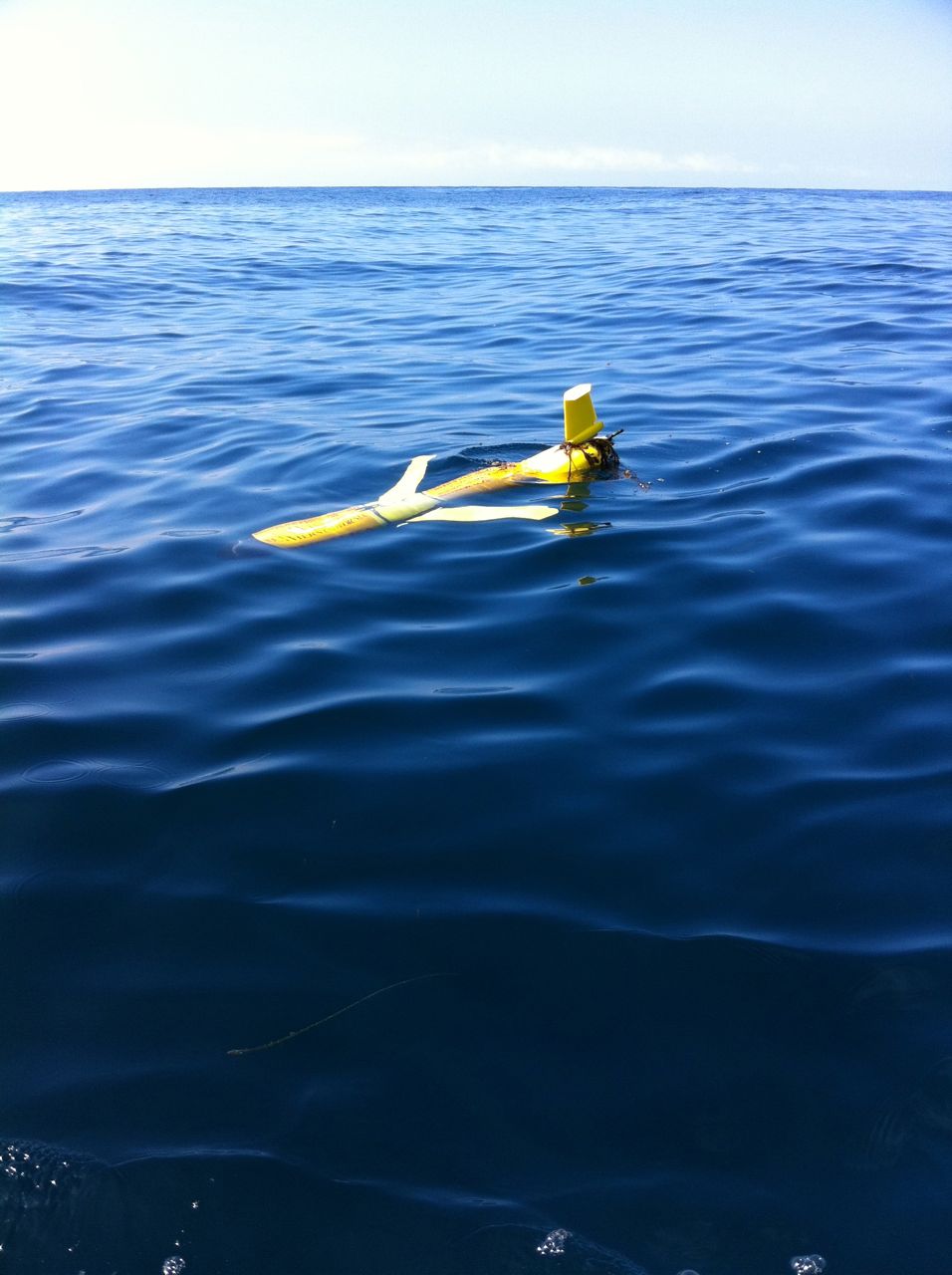
 and
and  . We know (from elementary math) that the
  and
and  . Here we can think about creating a test where we will want to ensure that if we wrote a function to solve a system of these two concrete equations we will get the same result for x and y. Similarly if we
  and
and  we would get
  and
and  .
. and
and  . This describes two lines which are
  . Every point
  on one line satisfies the second line, and this
  .
. and
and  ,which in matrix form will be:
![\left[ \begin{array}{cc} a & b \\ c & d \end{array} \right] \left[ \begin{array}{c} x \\ y \end{array} \right] = \left[ \begin{array}{c} e \\ f \end{array} \right]](https://web.archive.org/web/20131028215804im_/http://s0.wp.com/latex.php?latex=%5Cleft%5B+%5Cbegin%7Barray%7D%7Bcc%7D+a+%26+b+%5C%5C+c+%26+d+%5Cend%7Barray%7D+%5Cright%5D+%5Cleft%5B+%5Cbegin%7Barray%7D%7Bc%7D+x+%5C%5C+y+%5Cend%7Barray%7D+%5Cright%5D+%3D+%5Cleft%5B+%5Cbegin%7Barray%7D%7Bc%7D+e+%5C%5C+f+%5Cend%7Barray%7D+%5Cright%5D+&bg=ffffff&fg=000&s=0) .
.