Git Experience…
I’ve been using Git for a while as my source code version control system and I still end up forgetting several of the commands that I really ought to remember. Even though Google’s searches are pretty energy-efficient, I’d prefer doing my part to avoid them. This post is meant to be a mini-guide on setting up a git repository, using it and doing many of the basic operations that go with it, with the hope that this might be useful to more folks than just me.
Why would you want to use Git?
- Writing code is somewhat like mountain climbing – you might end up depending upon your safety line and all those fallback hooks which might save you from a catastrophic plunge downward. Adding a new feature might break something that worked in the past. A code-revision system is a programmer’s safety rope.
- If you’re writing any code with more than one person involved in the project, you NEED a version control system. Git is one of the better ones out there today.
- Git maintains a local repository, besides a local index. What this gives you is the ability to keep on committing locally without having to be within reach of an internet connection to send those commits to your remote directory (which is usually an issue with Subversion, Code Versioning System (CVS) and so on.
- Git is distributed. This is an elaboration of 3, but is more general. You can have multiple repositories which may or may not be synced to each other. This gives us added redundancy in the ability to maintain multiple copies on many machines so that at least one of these ought to be available in the event of a catastrophe.
- Git uses the concept of creating “clones” which are then “merged” together. This is slightly different from the paradigms in other SCMs, but is a pretty good one. It does have branches too, but a clone is conceptually, a more water-tight repository for the person who cloned it to do whatever they want in it, while making local commits. After the person is satisfied with the state of work their clone is in, they can request a merge with the main version (or other clones/versions).
- Finally, Git was designed ground-up to be fast – it is what the folks who develop the Linux kernel use to maintain its source code. After all Linus Torvalds wrote it!
These are just a few reasons for it – there are many more! If you’re interested in using Git as your own SCM, and are looking for hints on how to go about doing so, read on.
In the beginning, we need to create a Git repository. There are many ways to do this – for starters, one can use github or gitorious to host them (and these have front-ends that manage the setup for you). Personally, I use Gitorious to host my own private repositories instead of using the online service. It takes a little work to set one up, but once done it usually turns out to be well worth it! Look here for information on installing it on your own Ubuntu box. Once setup, you get a web-based front-end with which to administer repositories, watch diffs, add users and so on.
If you want to setup a repository the harder way however, read on:
To create a remote git repository:
1. Create a new directory for the project (lets say [project-name]) on the remote host.
Create the project directory
mkdir ~/git/[project-name]2. Initialize the GIT directory
Initializing the directory
git init ~/git/[project-name]3. Make this remote repository a bare repository:
Making the git repository a bare repository
git config --bool core.bare trueNote: The step above is only required in case you’re going to be directly working on the “master” branch on your local machine (which is usually the case since you’re the one setting it up right now!).
4. On your local machine clone this repository by doing:
Cloning the repository
git clone ssh://username@domain/home/username/git/[project-name] ~/Documents/code/git/[project-name]By the end of step 4, you have already managed to clone your project. You’re done with not only creating a git repository, but also cloning it.
Another way to setup your project starting from your local copy is this:
Steps to initialize a project on your local computer
mkdir [project-name]
cd [project-name]
git init
git add {files in your project}
Alternatively, do a git init inside a directory which you want to use as your project.
Now on the remote host do:
steps to be followed on the remote computer
mkdir ~/git/[project-name]
cd ~/git/[project-name]
git init --bare --shared=false|true|group
Again on your local machine add the remote:
Add remote information to local repository and push upstream!
git remote add origin ssh://username@hostname/home/username/git/[project-name]
git push origin master
This will push your project onto your remote-repository. Others can then check it out provided they can access it. We will not discuss how to setup user privileges in this post.
If you use Eclipse as your editor like me, there is a simpler way to use Git. Install the EGIT plugin and read more about it here.
Well, that is just the beginning of Git. I’m not going to detail everything that can be done with it, because that is probably done best here.
Instead, I’m going to put certain git commands which I end up using in certain special cases which might be useful to others too.
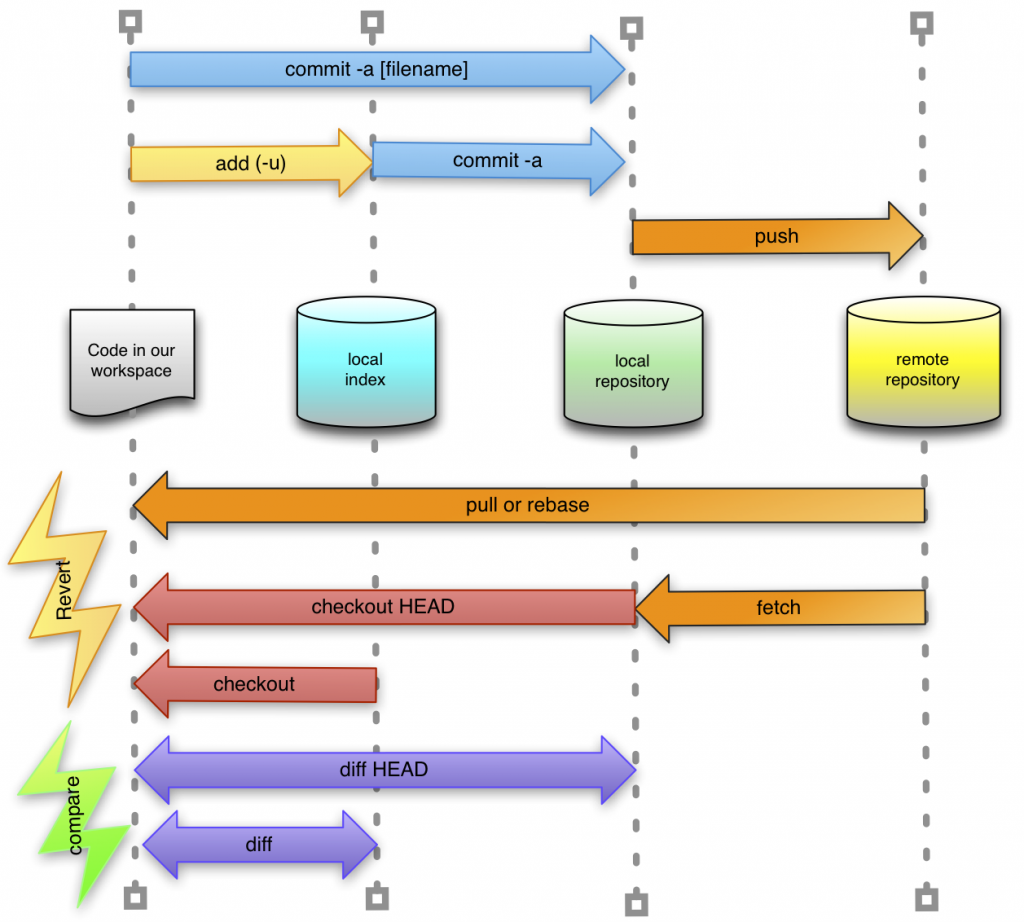
- My reproduction of a git command set diagram, created by Oliver Steele.
The figure above shows how code that you are writing in an editor such as Eclipse is actually being tracked locally with an index and a local repository which can then be kept in sync with a remote (usually central) repository.
When working with multiple machines, you might have some changes being tracked in the index or local repository, which produces conflicts with those changes from the remote repository. To force the remote version to overwrite the local modifications do:
git reset
git reset --hard HEADThe command above resets the repository and forces it to discard local changes in preference to those coming in from the remote repository. This is usually followed by a:
git pull
git pullA hard git reset to the HEAD version is fine if you are the person who is really responsible for the whole project and are totally sure about what you’re doing.
So we have seen how we can create a repository, and clone it. The figure above also shows how one commits code and then pushes it upstream. We can also fetch code from the remote repository or better still pull from upstream (which also does a merge with your local repository).
The next thing one might want to do is to merge your own branch or clone with say the main repository. In Gitorious, this is called a Merge request. Now, when doing a merge, one typically proposes a merge which is then available at merge-requests/# where # is the merge-request number and is usually 1 if it is the only merge-request.
So the first thing one would during a merge is to checkout the merge-request by doing the following:
checkout merge request
git checkout -b merge-requests/1This creates a branch locally for the 1st merge request.
The next step is to pull the merge-request over. To do this the command would be something like:
pull merge-request
git pull git@git.yourdomain.com:yourproject/yourrepo.git refs/merge-requests/1Note that in your own case, this could look different in several possible ways. The version of the git string I have used here is for restricted ssh access via Gitorious, but you might be able to use a git protocol string too. You definitely need to change the names of the remote host-name, project and repository to get this to work of course.
Typically, unless people merging code were working on air-tight sections of code, you will end up having conflicts during the merge. These conflicts need to be taken care of before a merge can be performed. To do this one would normally use a merge tool (which shows you the diffs between versions).
merging your code with a mergetool
git mergetoolThis command will suggest a diff-viewer which will most likely also allow you to choose which changes you want to accept from their side, and which of your own modifications you want to keep instead. Keep saving your changes as you resolve these differences.
Alternatively, you could also checkout either their file or your own explicitly using one of the commands below:
git checkouts for our/their versions of a file
git checkout --ours filename.py
git checkout --theirs filename.py
Next you might want to review the commits that will take place with the merge-request.
view commits
git log --pretty=oneline --abbrev-commit master..merge-requests/1Now, it is time to finish up the merge.
checkout master
git checkout masterNext, do the actual merge.
do the merge!
git merge merge-requests/1Finally, push the merged version back to the origin.
push to origin
git push origin masterWe’re done merging!
Hope this was helpful! Good luck Git-ting it!